

The king fried system is here! Sany Petroleum Equipment APP, everything you want to know is here!
2022.10.24
Sany Petroleum
This is a king frying system,For equipment monitoring and maintenance,It has immeasurable efficacy.It can help you view anytime and anywhereAll kinds of production and operation reports,The mobile terminal grasps the construction teamFirst-hand consultation,Present you with a digital construction site,It can also be used as a marketing service for you and TrinityAn interactive platform for real-time communication.
First, the main functions
The "Sany Petroleum" APP contains six major plates——Construction Curves, Activity Logs, Real-Time Conditions,"Health management", "trajectory management", "fuel consumption management", etc
1. "Construction Curve": Click the Construction Curve tab to switch this function to view the construction curve of the equipment, click the date in the upper left corner to pop up the calendar and select the date you want to view.
2. "Job Log": Click the Job Log tab to switch this function to view the device job log curve, click the week/month in the upper left corner to switch the weekly and monthly curve, and the arrows on both sides of the date can switch the date.
3. "Real-time working conditions": The home page can display the geographical location of all devices, and support fuzzy search, such as online status, number, etc.
Enter the alarm and maintenance message interface, and you can check the corresponding engineer and mobile phone number of the equipment.
4. "Health management": you can check the maintenance of core components, the parts that do not need maintenance are green, the parts that need maintenance are orange, and the serious overdue parts are red.
5. "Trajectory Management" and "Fuel Consumption Management": Click on the upper track to switch to the vehicle location interface, in this interface you can set the electronic fence, click the button on the right side of the fence center to set the center, and then click Save after selecting the fence range.Click the energy consumption button to switch this function to view the energy consumption curve of the device, click the weekly/monthly curve in the upper left corner to switch the weekly and monthly curve, click the arrows on both sides of the date to switch the date, and click the upper right corner to flip to view the energy consumption curve in full screen.
6. "Device Information Card": With the equipment information card interface, you can switch between the team view and the bicycle view, and view some basic information of the team and the bike.
7. "Equipment and team": You can add equipment and add new teams, new teams can create teams, and use the front team perspective function to scan the code to bind the equipment.
8. "Bicycle Information": Click on the bicycle information card to enter the bicycle details interface, if the team perspective is to click on the team information card and then click on the bicycle.Click on the part name below to view the main parameters related to the part.
9. "Product Promotion": Click Product Promotion in the navigation bar below to switch to the Product Promotion module.Click on the showroom to view the parameter information of the products on sale and the contact information of the marketer.
10. "Feedback": Click on the feedback below, you can submit your opinions, you can choose the classification of opinions, after submission, we will give feedback and statistics in the background, and the valuable opinions will be given to the feedback person or cash rewards.
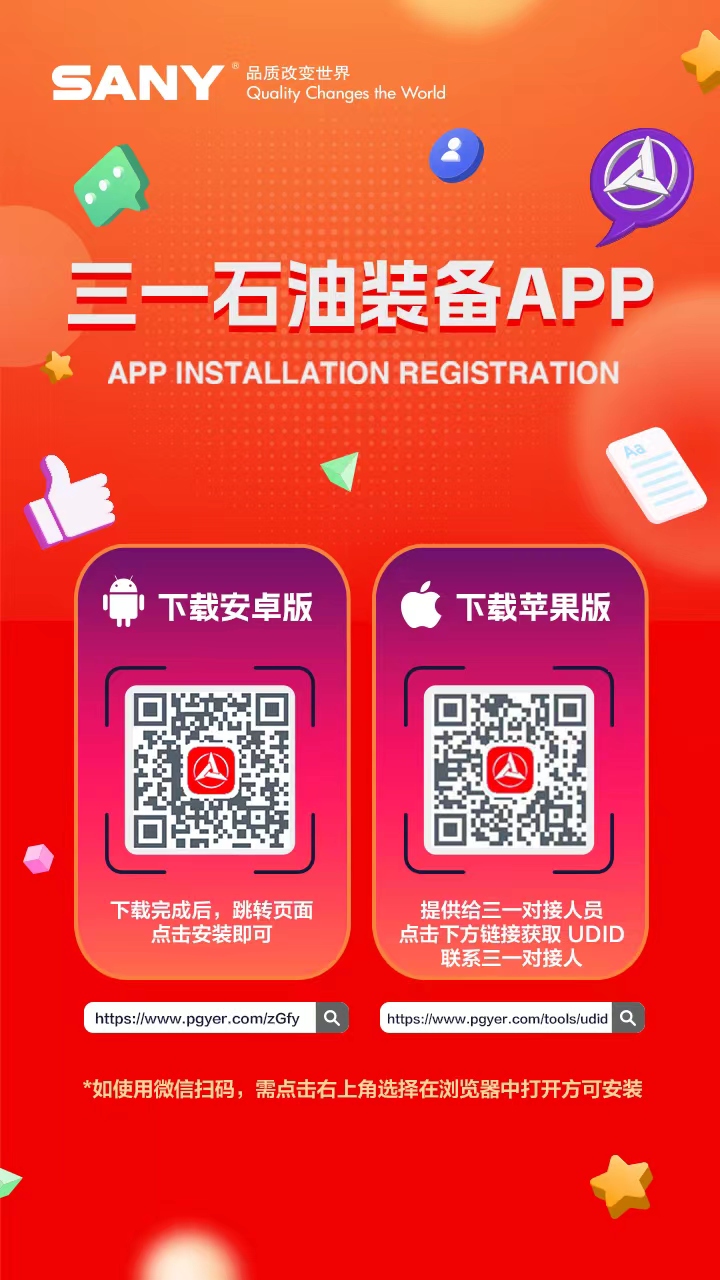
2. Precautions
● After scanning the QR code to log in, you need to approve it in the background, and then use the verification code to log in, and you can't use the password for the first login.
● If you use WeChat to scan the code, you need to click on the upper right corner and then select Open in the browser to install.
● Before using IOS, you need to click the link below to get the UDID and provide it to the editor, and you can leave a message on WeChat.http://www.pgyer.com/tools/udid
Related testimonials
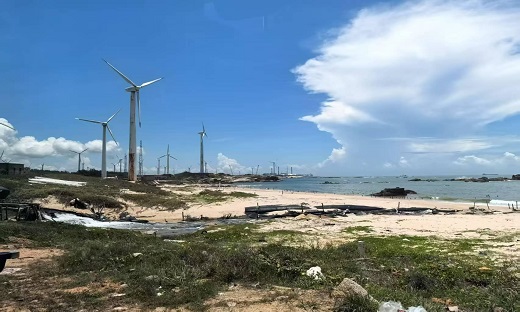
Sany Renewable Energy's first offshore engine "big on small" project was officially launched
2025.06.30
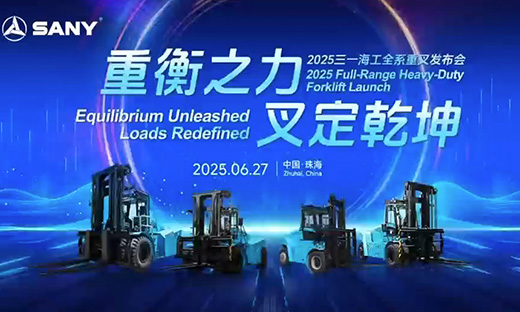
Sany Offshore full range of electric heavy fork press conference
2025.06.30
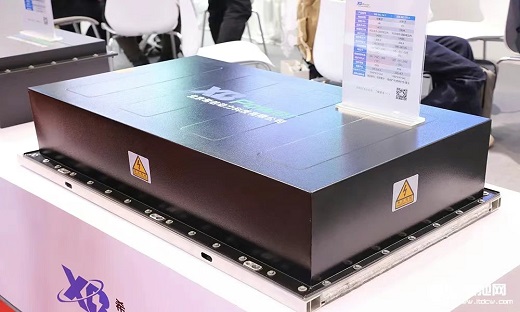
Xibei Power and Sany Renewable Energy have cooperated strategically to jointly promote the application of sodium battery energy storage
2025.06.29




0 comments